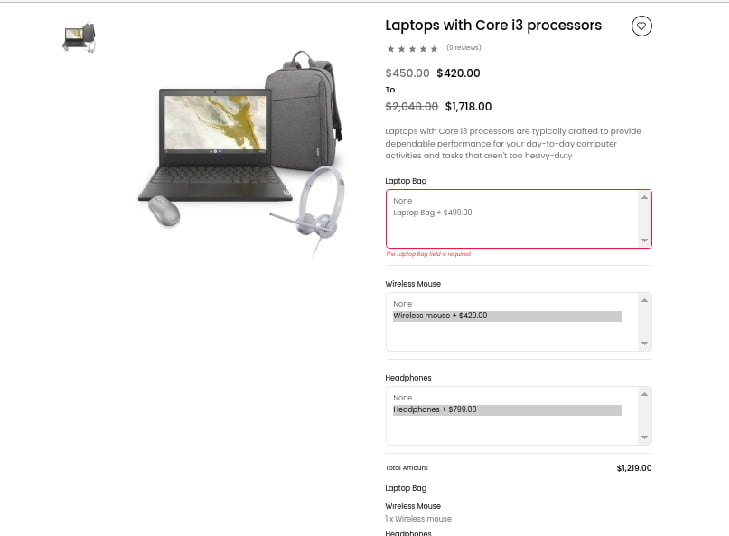

Steps To Create A Bundle Product In Kavio Ecommerce
- On the Kavio Ecommerce admin dashboard, go to Catalog Section >> Products >> select Bundle under the Product Type.
- Select Attribute Family.
- Enter the SKU (Stock Keeping Unit) for the product (unique to every product).
- Click the Save Button.
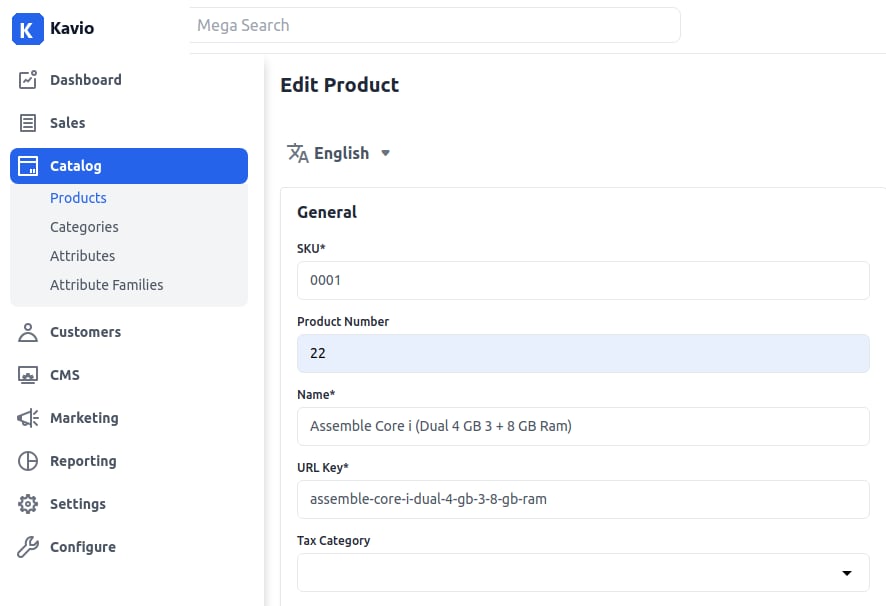
General Settings
- Name: Enter the name of the product.
- URL Key: This will be the end of the URL, e.g., products/assembled-core-i3-4-gb-ddr3500-gbwindows-10-pro151-inch-screen-black.
- Tax Category: Select the Tax Category from the dropdown list.
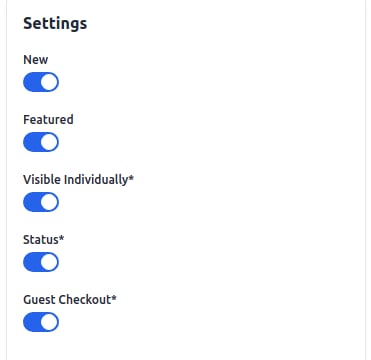
New
- Enable the toggle button to feature the product as a new product, shown under the New Products section.
Featured
- Enable the toggle button to show the product under the Featured Products section.
Visible Individually
- Enable the toggle button to make the product visible on the frontend.
Status
- Enable the toggle button to enable the product on your eCommerce store.
Guest Checkout
- Enable the toggle button to allow guest customers to order the product.
Description
Fill in the following fields under description:- Short Description: Enter a short description of the product feature.
- Description: Mention your product in detail.
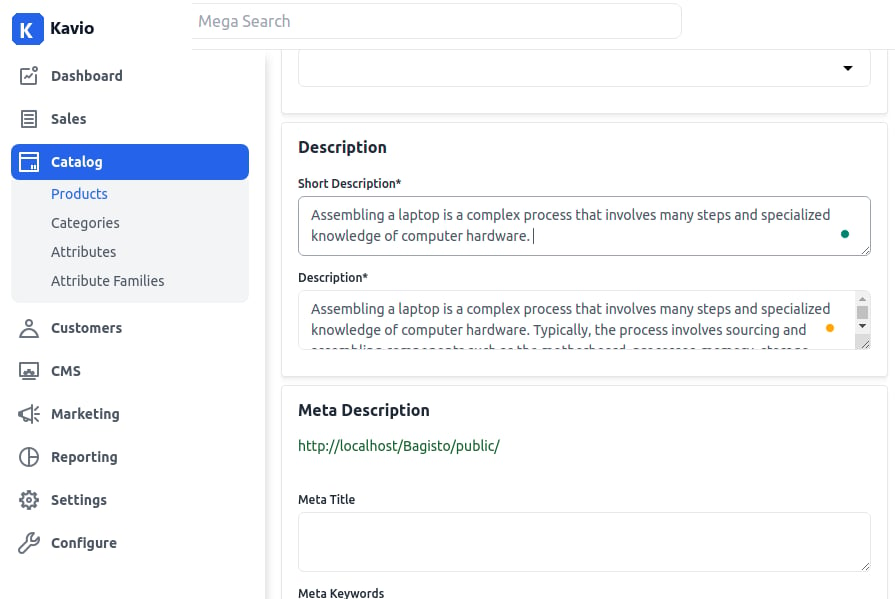
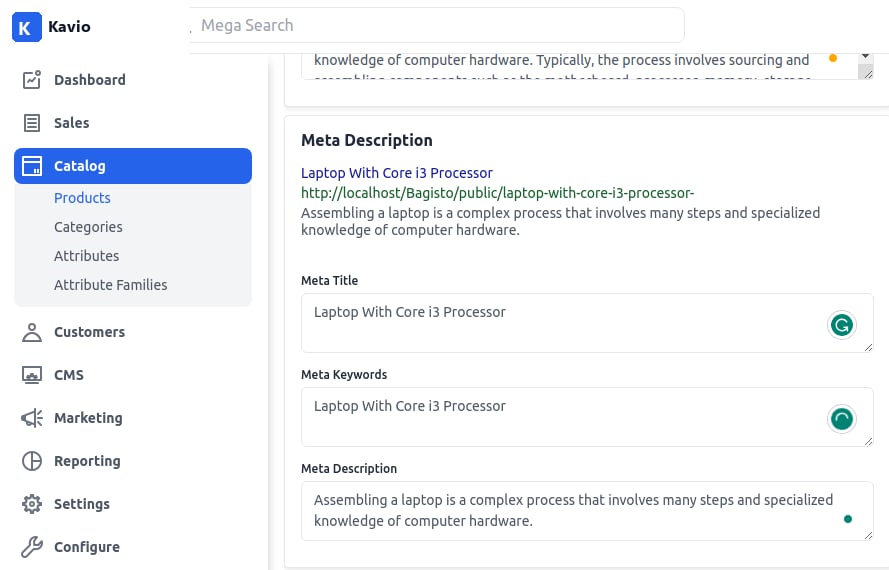
Meta Description
Fill in the following fields under meta description for improved searchability on search engines:- Meta Title: Provide the main title of the product.
- Meta Keyword: Provide meta keywords for specific search engine optimization.
- Meta Description: Enter a description for better search engine listings.
Images
To add product images, click on Add Images. You can add multiple images for your product.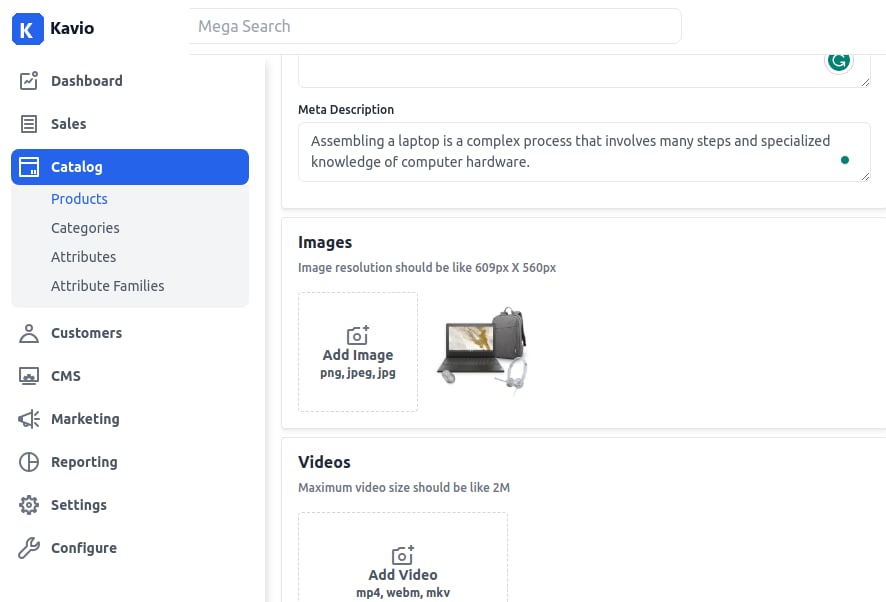
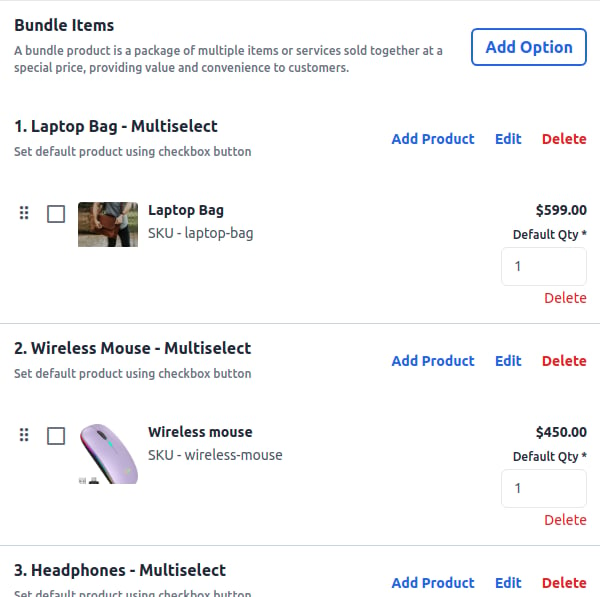
Bundle Item
Click on Add Option and:- Enter the Option Title.
- Set the Input Type (Select, Radio buttons, Checkbox, Multi-Select).
- Mark the Required checkbox if the field is mandatory.
Product At Front End
The bundle product will be visible at the front end.