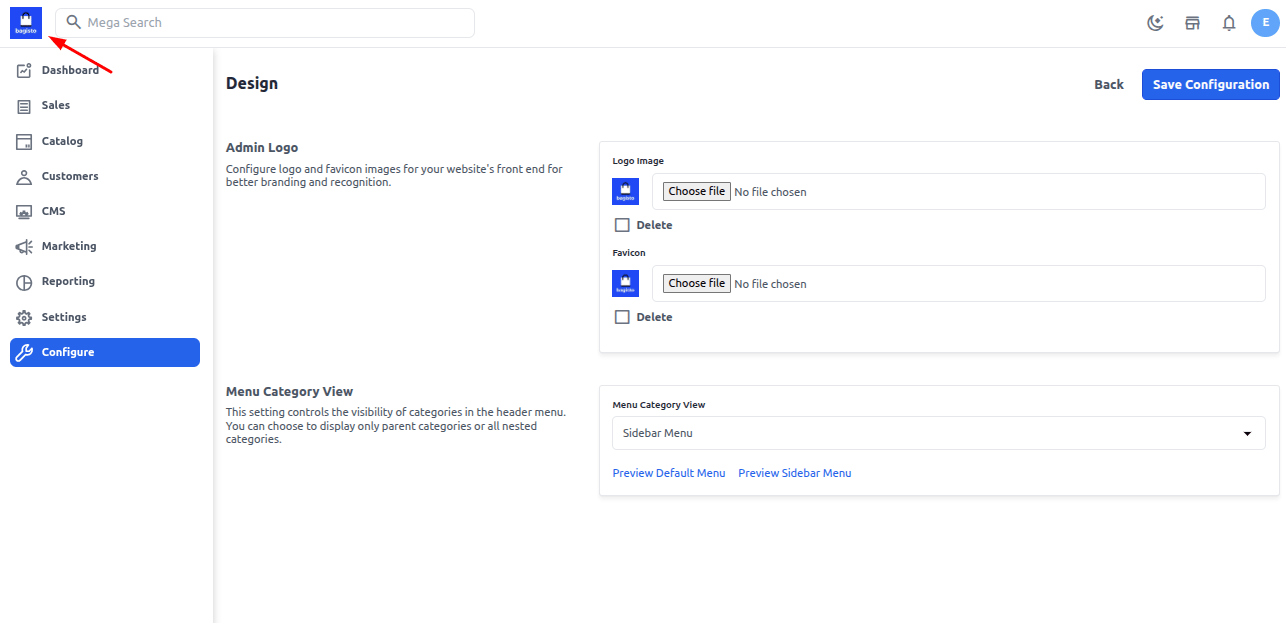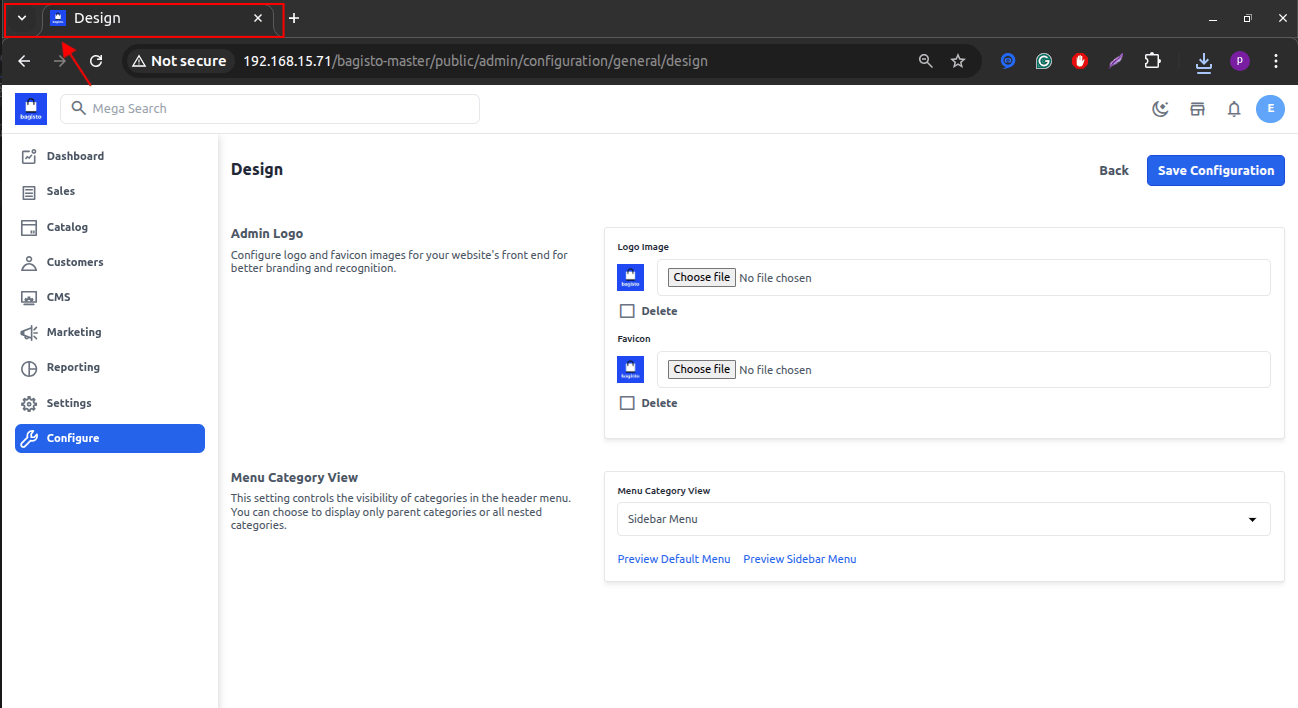
Admin Logo & Favicon Configuration The Admin Logo is a distinctive image or emblem representing the administration interface of a system or website. It is often customizable to match your brand identity. Similarly, the Favicon is the small icon displayed in browser tabs, helping users visually identify your site. Steps to Update Admin Logo & Favicon To update the Admin Logo and Favicon in Kavio Ecommerce:
  1. Go to the Admin Panel.
  2. Navigate to Configure → Design.
  3. Under the Design section, you will find options to upload a new Admin Logo and Favicon.
  4. Click on the Choose Files button to select the desired image files from your system.
  5. Once selected, click the Save Configuration button to apply the changes.
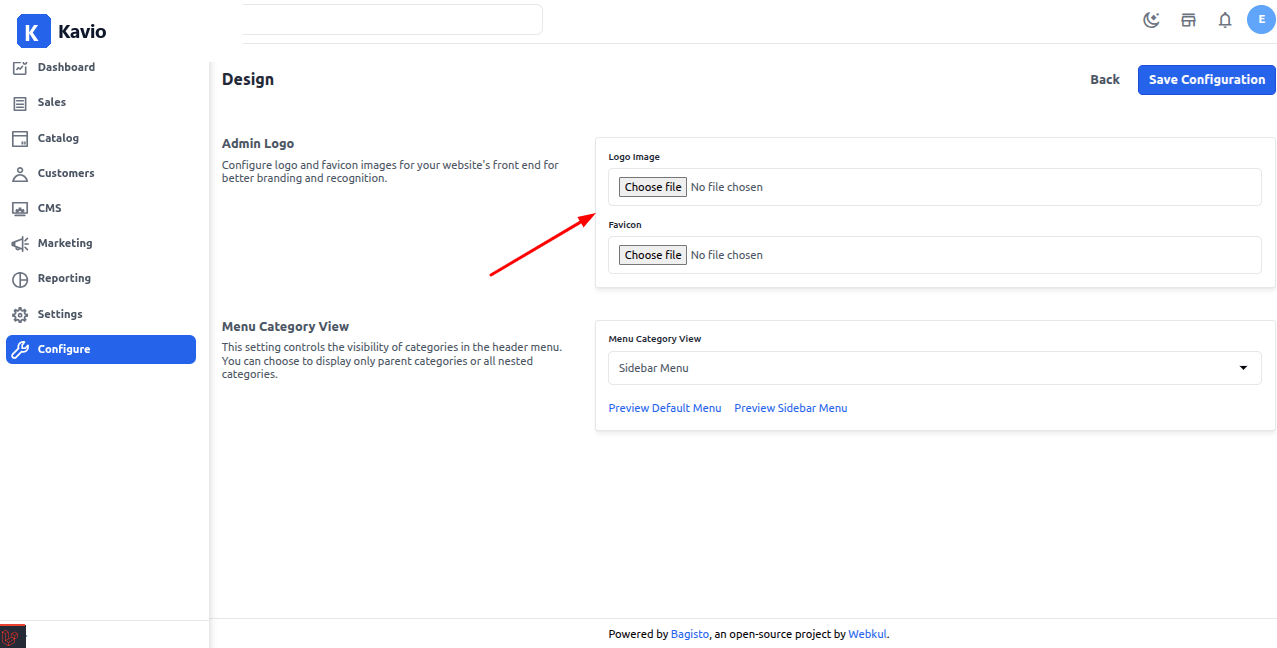
Design Configuration Interface Design Configuration Updated Logo & Favicon Output After saving the configuration, the new Admin Logo and Favicon will be visible in the admin panel interface. Logo Updated Admin Logo Favicon Updated Favicon Menu Category View Kavio Ecommerce v2.3.x introduced a new option to configure how product categories are displayed in the storefront menu. You can now choose between:
  • Default Menu: Displays categories in the top navigation bar.
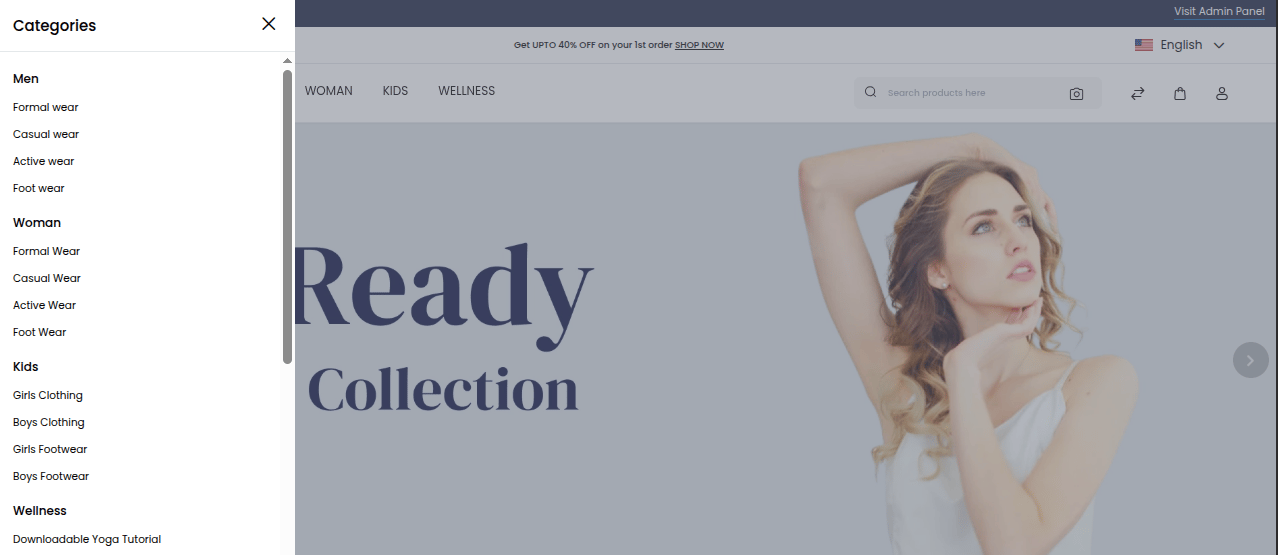
  • Sidebar Menu: Displays categories in a vertical side panel, ideal for stores with many categories or subcategories.

To update the Menu Category View:

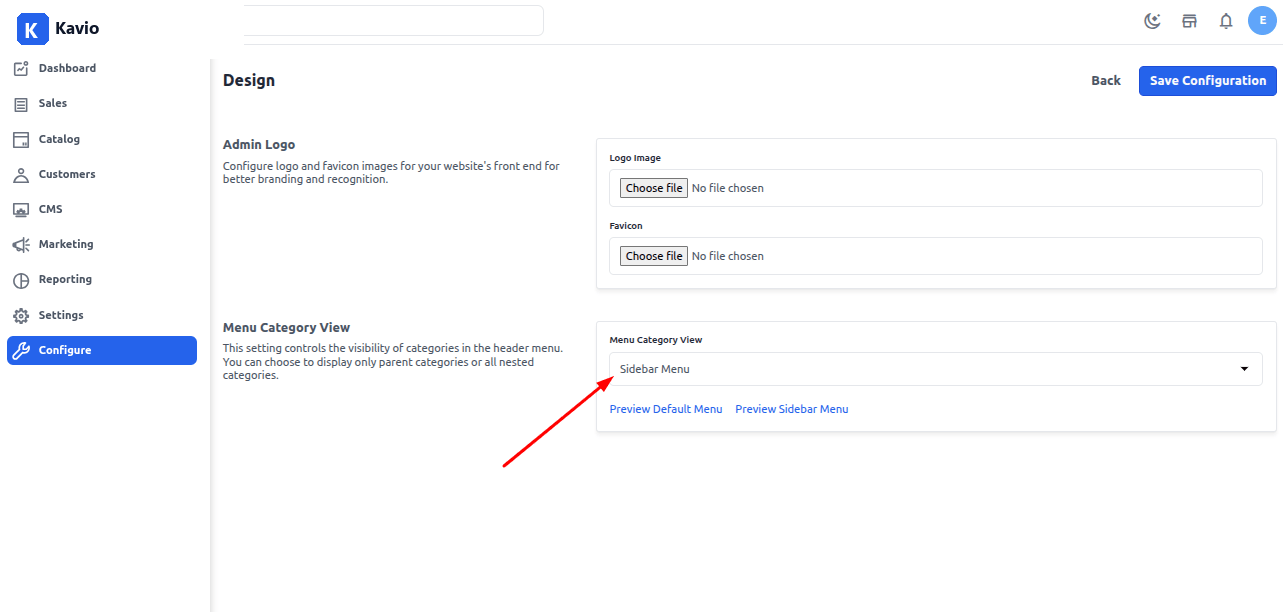
  1. Navigate to Admin Panel → Configure → Design.
  2. Scroll down to the Header Settings section.
  3. Under Category Menu View, select:
    • Default Menu or
    • Sidebar Menu from the dropdown.
  4. Click Save Configuration.
Menu Category View Setting Shopfront view Shopfront Menu Category View