
Steps to Create a Grouped Product in Kavio Ecommerce
- On the Kavio Ecommerce admin dashboard, go to Catalog Section >> Products >> select Grouped under the Product Type.
- Select Attribute Family >> enter SKU >> Click to Save Product.
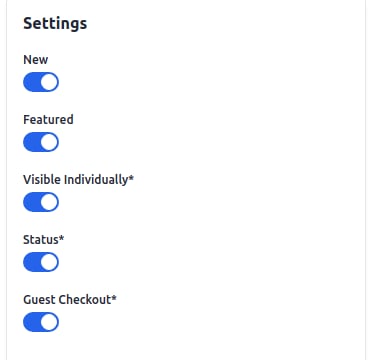
- Enter the SKU (Stock Keeping Unit) of the product, unique to every product.
General Settings
- Name: Enter the name of the product.
- URL Key: This will be the end of the URL, e.g., /products/set-of-men-casual-wear (set-of-men-casual-wear is a URL key).
- Tax Category: Select the Tax Category from the dropdown list.
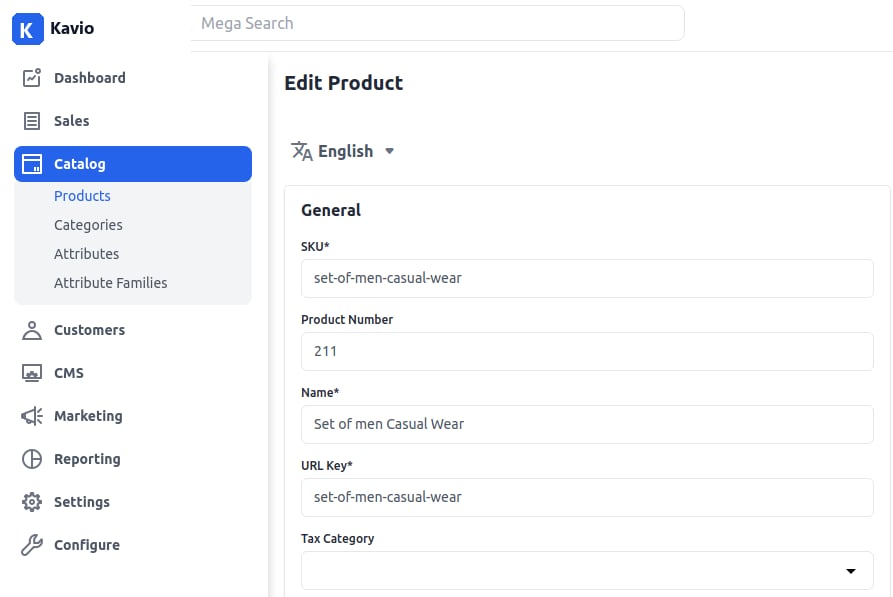
New
- Enable the toggle button to feature the product as a new product, shown under the New Products section.
Featured
- Enable the toggle button to show the product under the Featured Products section.
Visible Individually
- Enable the toggle button to make the product visible on the frontend.
Status
- Enable the toggle button to enable the product on your eCommerce store.
Guest Checkout
- Enable the toggle button to allow the product to be ordered by guest customers.
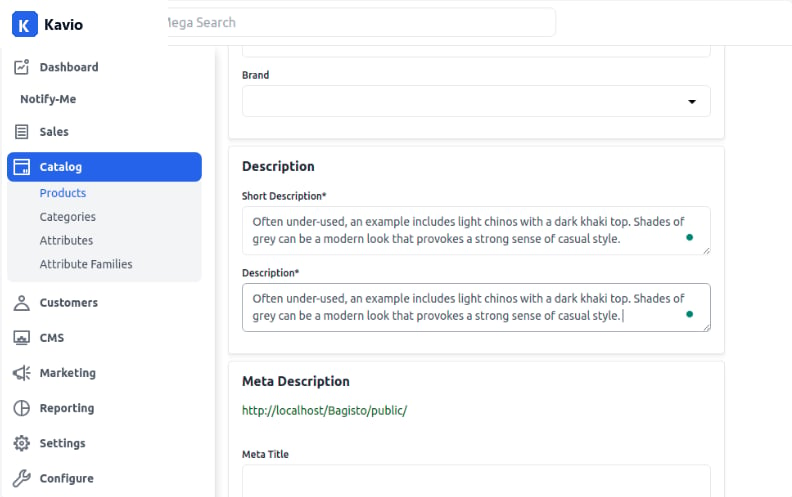
Description
Fill in the following fields under the description:- Short Description: Enter a short description of the product feature.
- Description: Mention your product in detail.
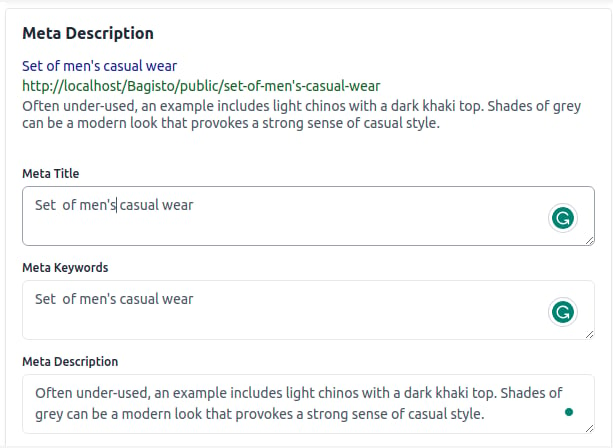
Meta Description
Fill in the following fields under meta description for improved searchability on search engines:- Meta Title: Provide the main title of the product.
- Meta Keyword: Provide meta keywords for specific search engine optimization.
- Meta Description: Enter a description for better search engine listings.
Images
To add product images, click on Add Images. You can add multiple images for your product.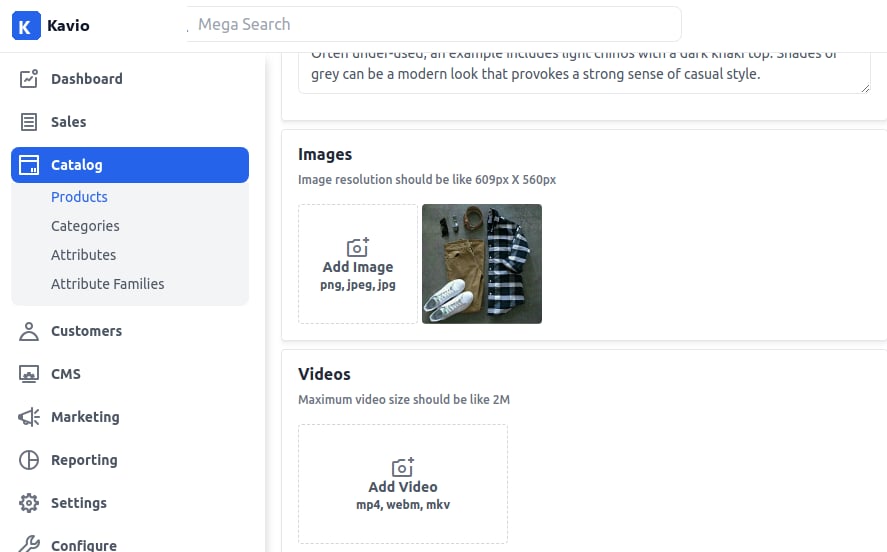
Grouped Products
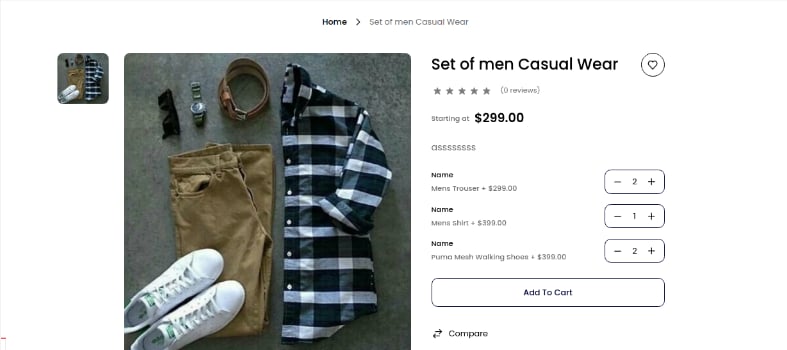
Search Products under this Search Product section. You can simply search the Simple Product to add in the Grouped Product. Once you add all the required products, they will be listed. Here you can also enter the default quantity (which will automatically be added to the customer cart) of the product and sort orders accordingly. Products will be listed on the front end as shown in the below image.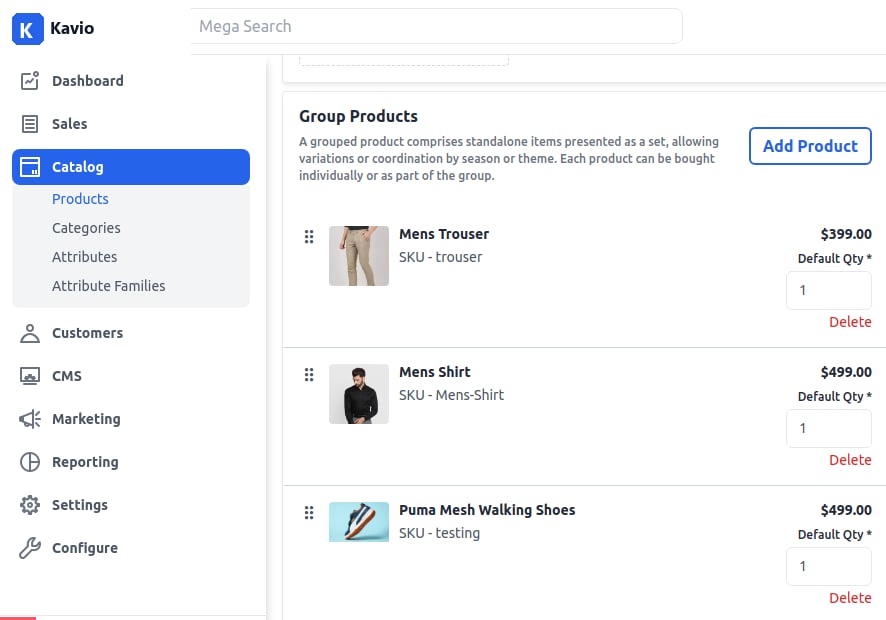
Product at Front End
The grouped product will be visible at the front end, as shown in the image below: