
To create a CMS page from the Admin Panel, follow the below steps:
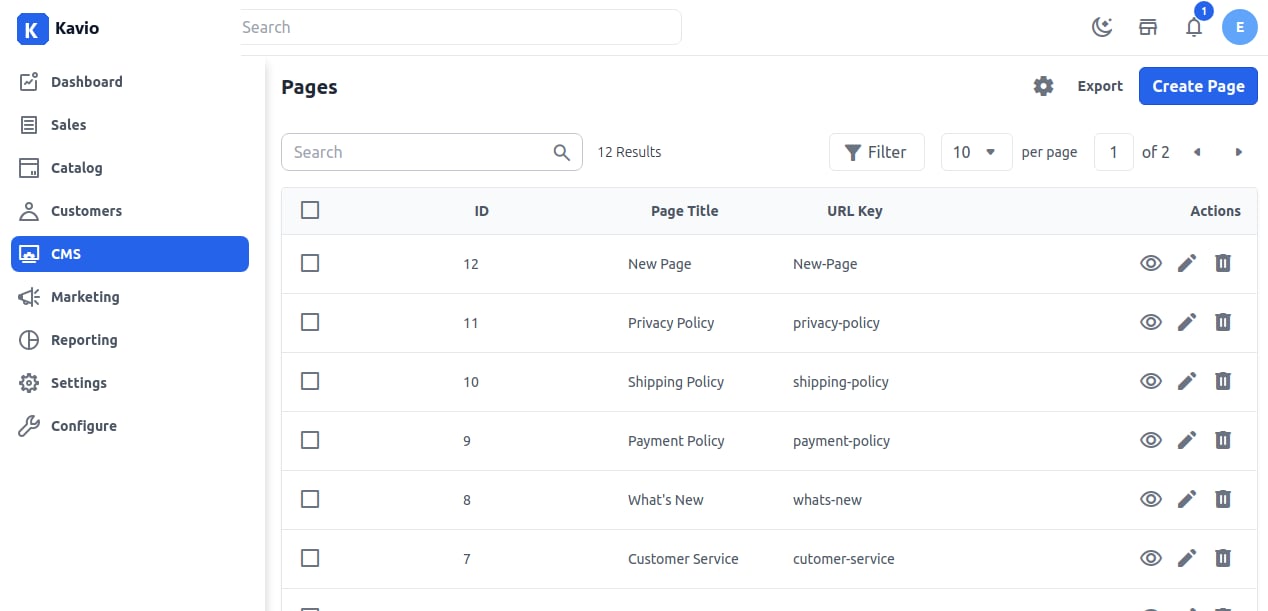
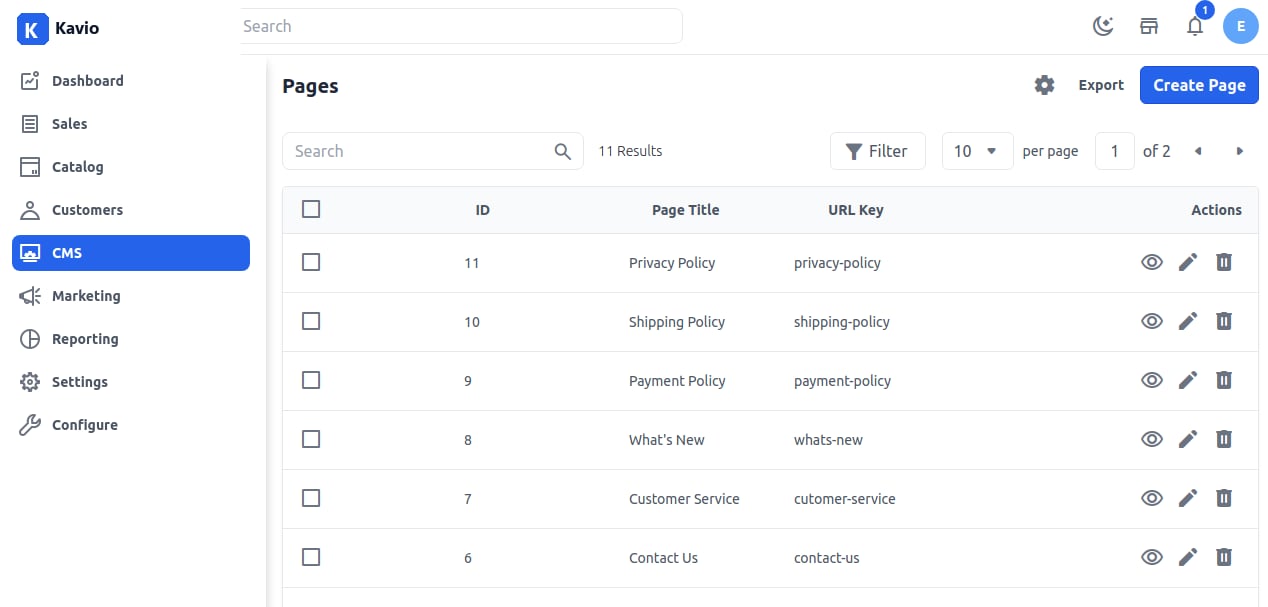
Add a New Page Step 1: On the Admin Sidebar, click on CMS >> Page.By default, there are already CMS pages located here. To create a new CMS page, click on the Create Page button as shown below.
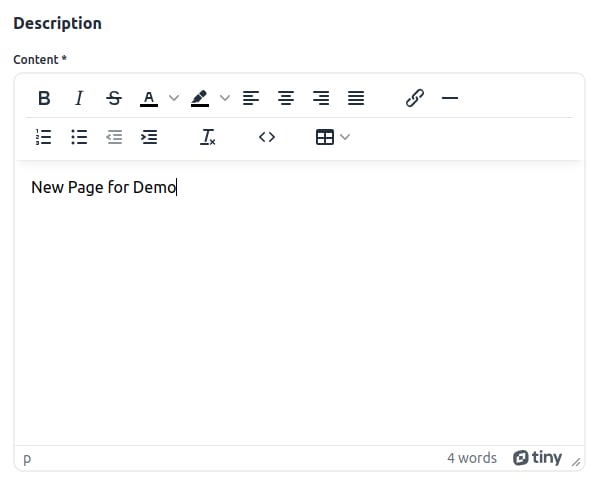
-
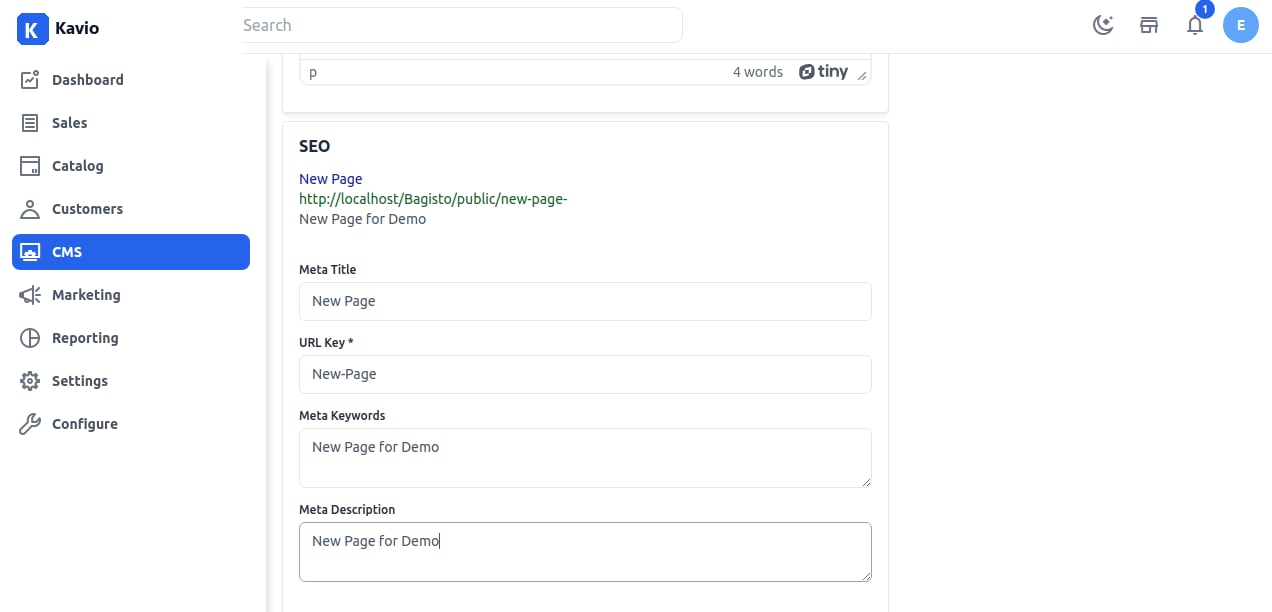
Meta Description
Enter the description so that the CMS Page can easily appear in search engine listings. -
Meta Title
Provide the main title of the CMS Page, by which your page will be known. -
Meta Keyword
Provide meta keywords for the page to improve its searchability in search engines. -
URL Key
The URL key is the part of a static URL that describes the Page, Product, or Category.