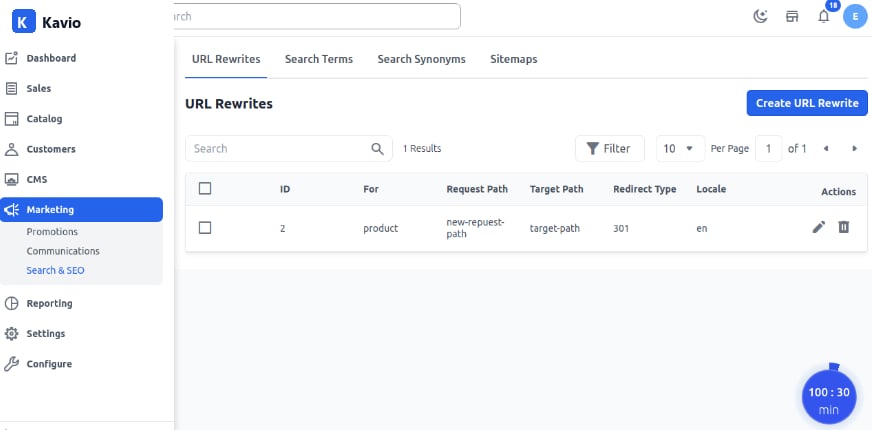

Step 1: Navigate to URL Rewrite
On the Admin panel, go to Marketing > Search & SEO > URL Rewrites and click on Create URL Rewrite as shown below.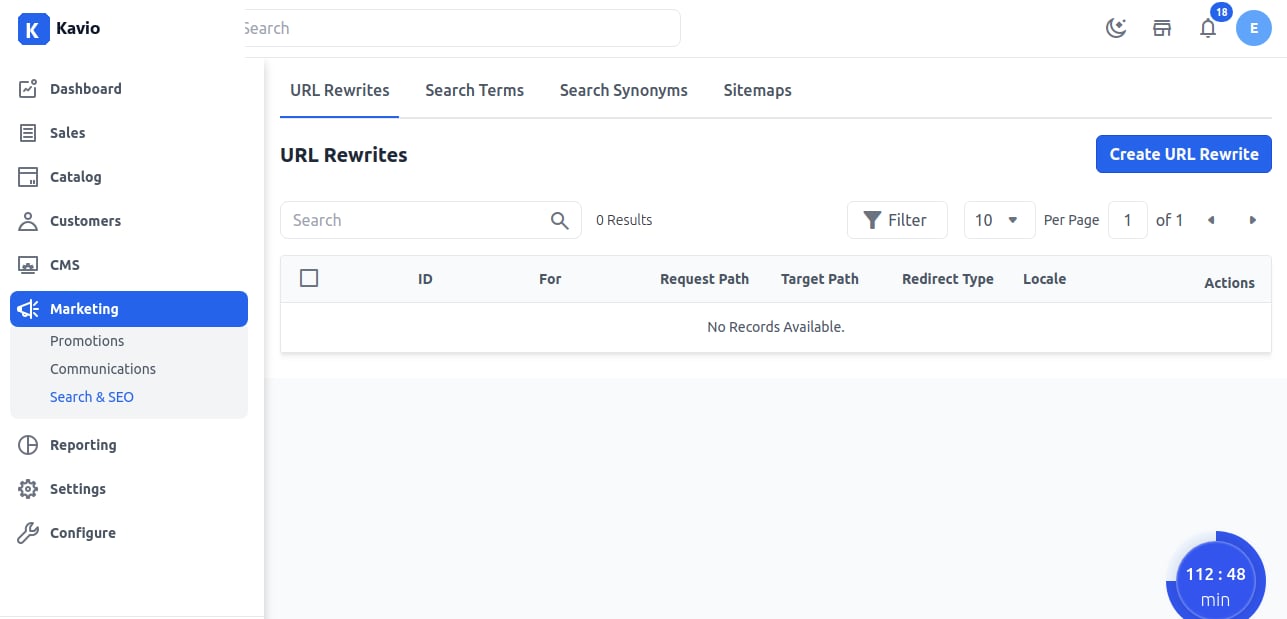
Step 2: Add URL Rewrite Details
Fill in the following fields:- For – Select the entity for which you are applying the URL Rewrite (Product, Category, CMS Page).
- Request Path – Enter the URL key and suffix (if applicable) of the original product request. This is the redirect from the product/category/page identified earlier.
- Target Path – Displays the system version of the path (cannot be changed).
- Redirect Type – Choose one of the following:
- Temporary (302): Use for temporary changes while retaining SEO value on the old URL.
- Permanent (301): Use for permanent changes with SEO value transferred to the new URL.
- Locale – Select the language in which you want the URL to be rewritten.
Step 3: URL Redirection
The new URL will now redirect as per the Target Path permanently.