
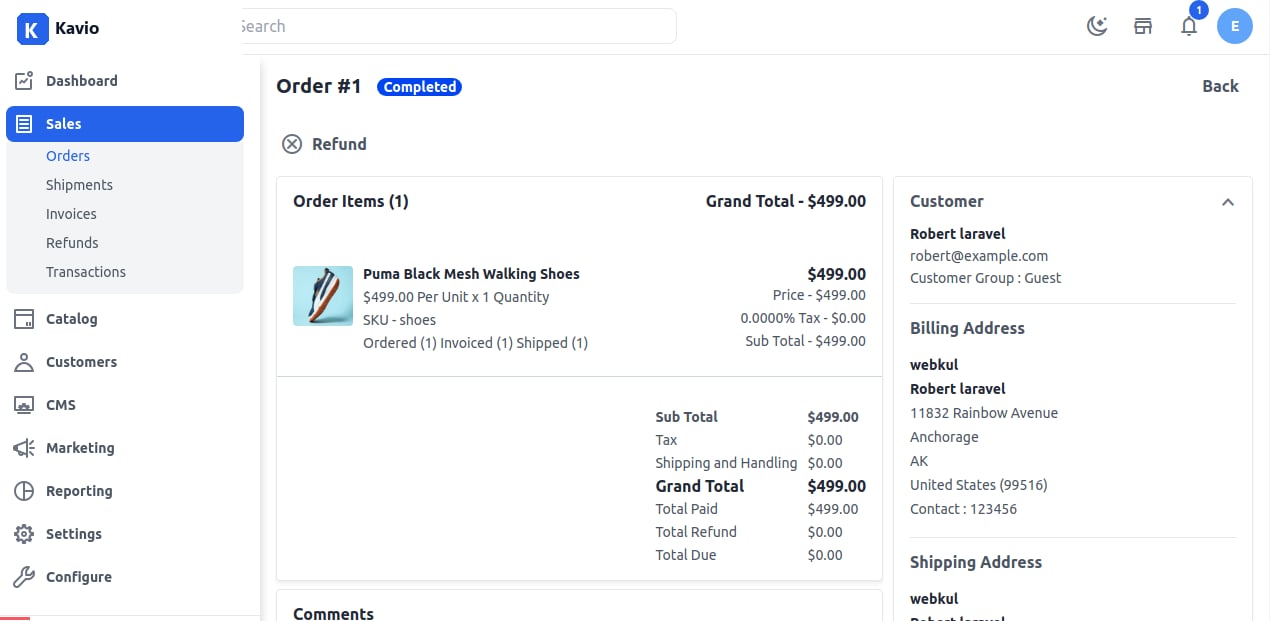
A customer who bought an item may ask the store for their money back if it didn’t fit according to their choice. you may ask them to return your money. In Kavio Ecommerce after your order is Completed after creating a shipment you go and edit that order and from there you can easily apply for a refund. Refund So now enter the quantity which you want to apply a refund for. Refund Shipping:- In this field, you can enter the amount which you want to refund from the shipping fee. Initially, this field will show the total shipping amount that is available for refund.
The refund shipping fee can be decreased but can’t be increased to the actual shipping (initial shipping amount) fee.
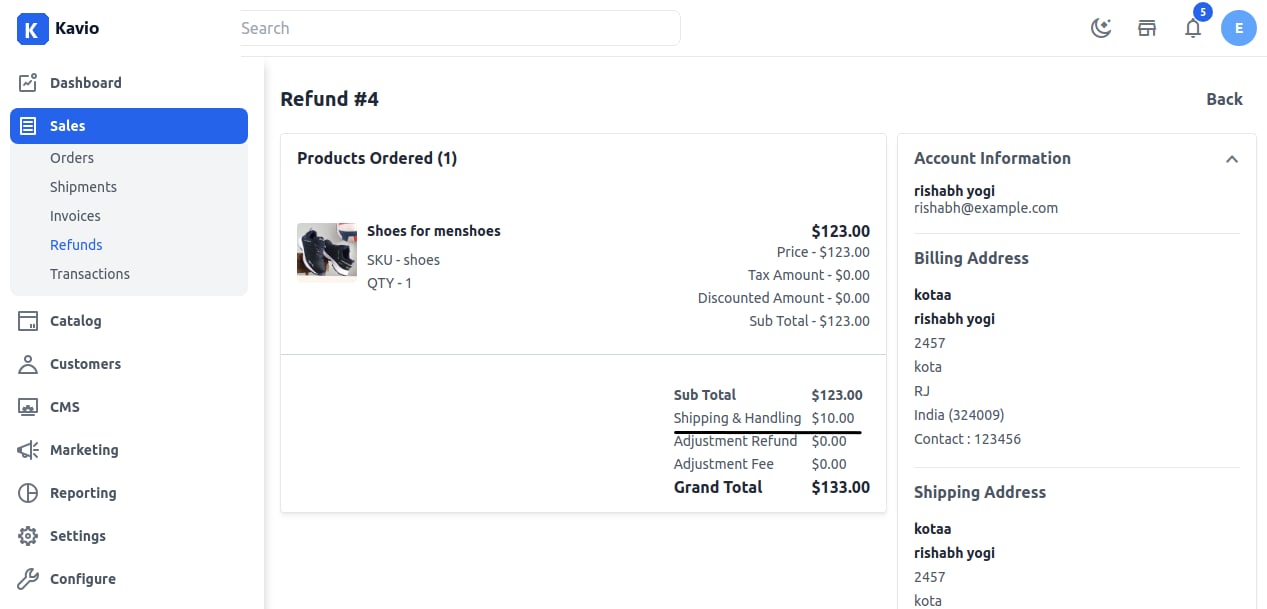
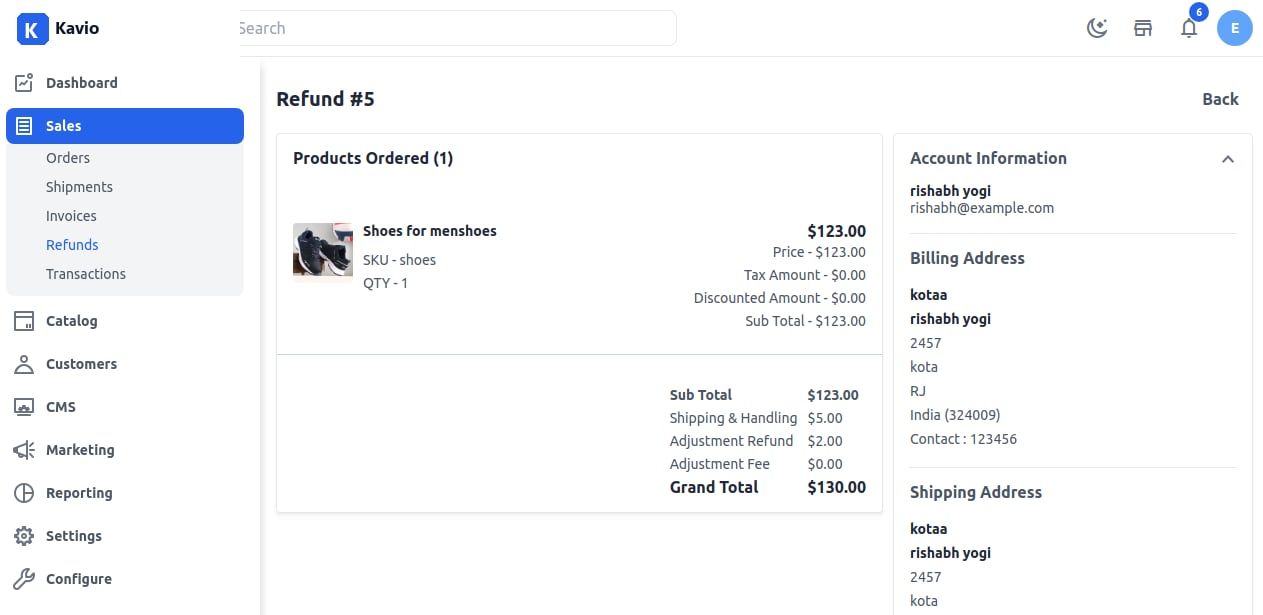
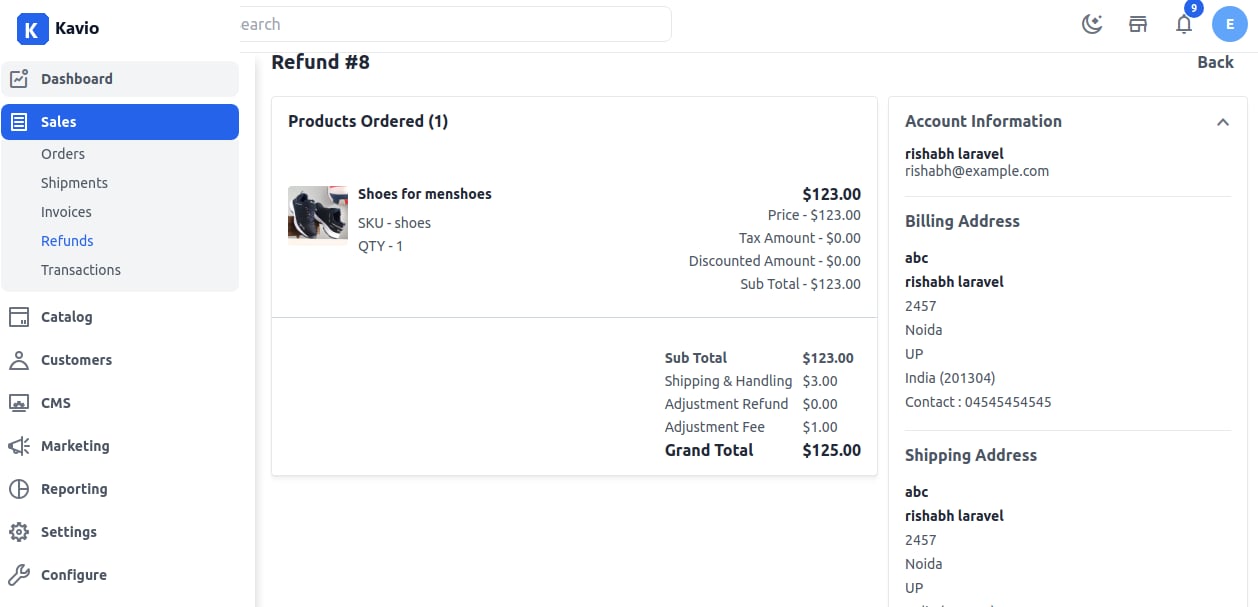
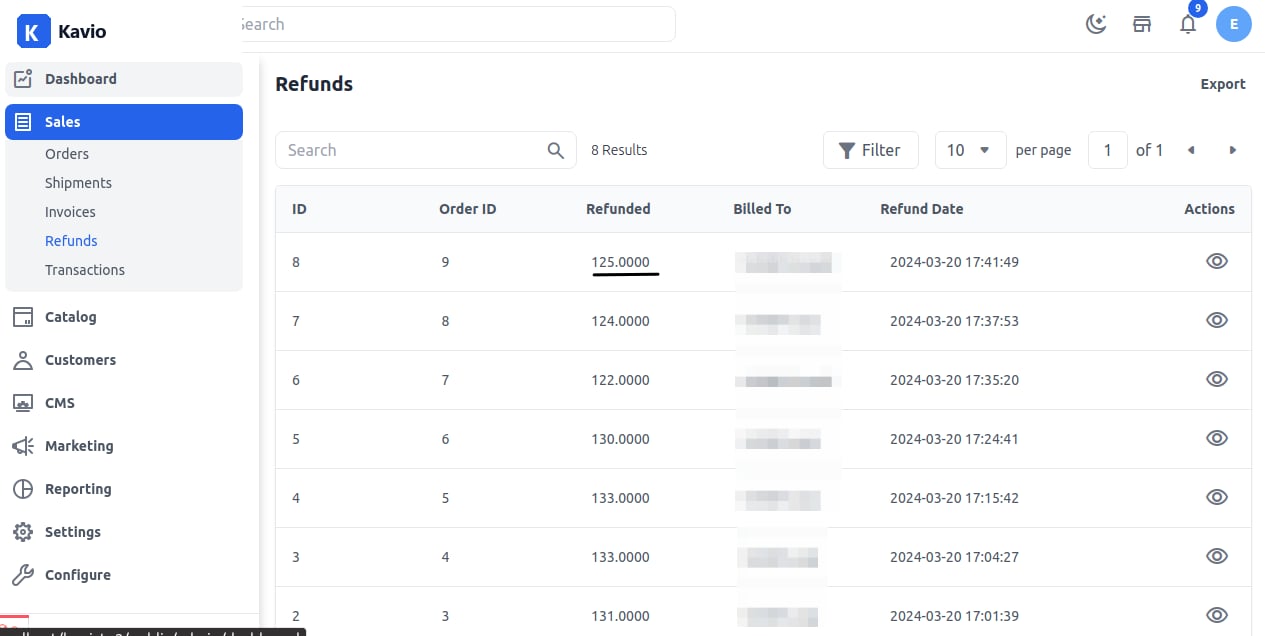
In the below image, we have applied the amount of $10 refund shipping which is the total amount that applies to shipment charge. All the amount i.e. $10 refunded as Shipping & Handling as shown in the below image. Refund Shipped Adjustment Refund:- You can enter the amount which will be added to the total refunded amount as an additional refund that does not include any shipping, product price, tax cost. In the below image we have refunded 5ofRefundShippingand5 of Refund Shipping and 2 of Adjustment Shipping All the amount refunded $7 as Shipping & Handling and Adjustment Refund as shown in the below image. Adjustment Refund Applied Adjustment Fee:- Enter the amount that will be subtracted from the sub-total amount. In the below image Refund Shipping is 3andAdjustmentFeeis3 and Adjustment Fee is 1 Now the 1subtractedastheAdjustmentFee∗∗fromthesubtotalamountand∗∗1 subtracted as the Adjustment Fee** from the subtotal amount and **3 Shipping and Handling added in the grand total amount that needs to be refunded. Adjustment Fee Refund After that it will get redirected to the Refund Grid and show the refunded amount in the grid as shown in the below image. Refund Grid By the above steps, you can easily Refund in Kavio Ecommerce.