

Easy Steps to Manage Inventory in Kavio Ecommerce
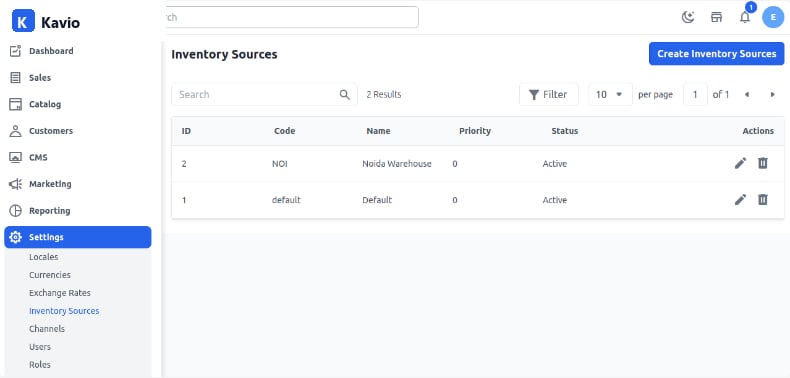
Step 1: On the Admin panel of Kavio Ecommerce, go to Settings >> Inventory Sources >> Create Inventory Source as shown below.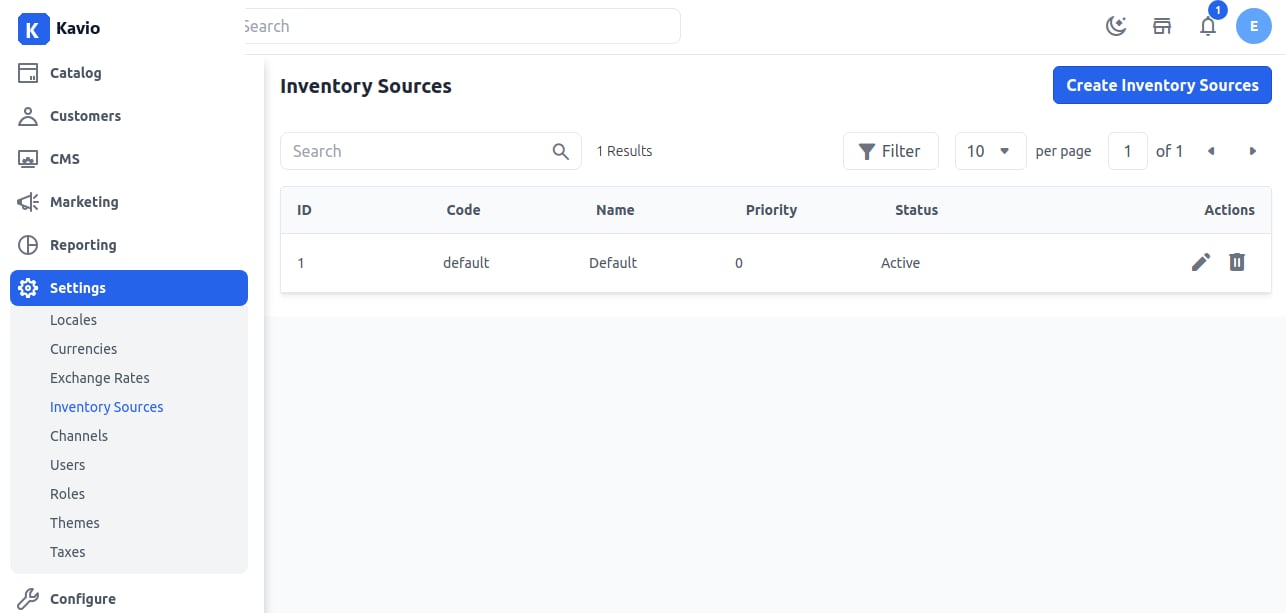
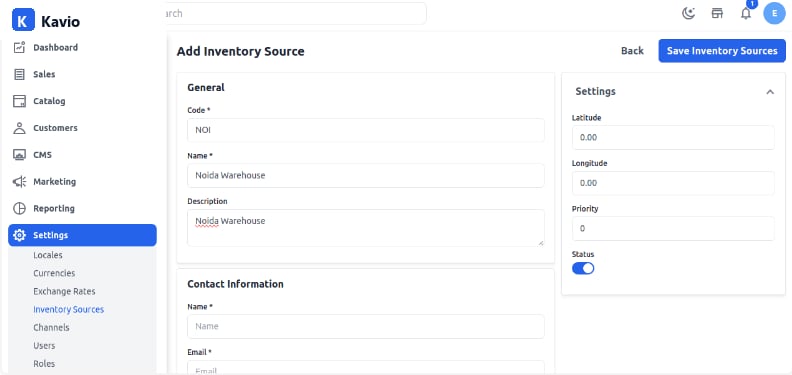
Enter the Code, Name, Description, Latitude, Longitude, and Priority, and set the Status as active.
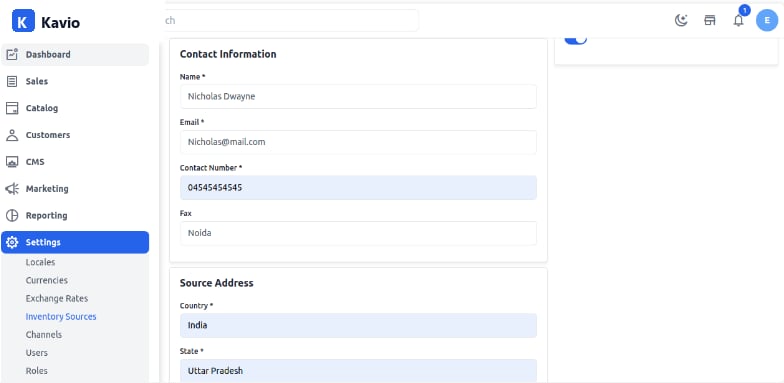
Enter Name, Email, Fax, and Contact Number.
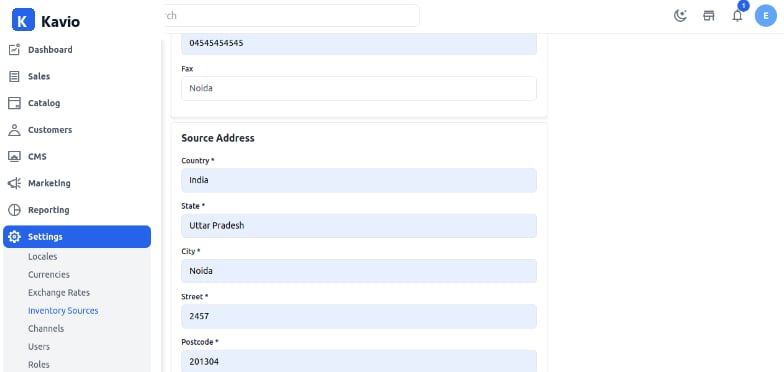
Enter the source address details like country, address, state, and city.
Inventory Setting on the Product Page
Go to Catalog >> Products. Open the selected product in Edit Mode and enter the quantity for each inventory source. After filling up the required fields, click Save Product. Note: If you do not enter any quantity, by default 0 is saved, and an inventory with 0 quantity will not be visible in the shipment page inventory options.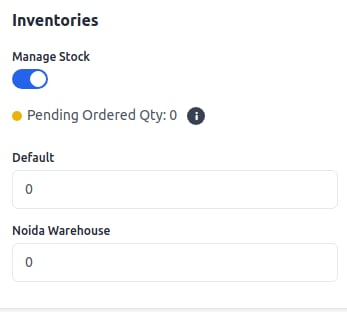
Inventory Setting on the Shipment Page
Go to Sales >> Orders. Open the selected order in Edit Mode >> Invoice >> Save Invoice >> Ship. Under the Product Ordered Section, the Admin can decide from which inventory the product should be delivered. Note: You can enable only one Inventory at a time. When one inventory is selected, others will automatically be disabled.For example, if you select Noida Warehouse, other inventories will be disabled. Enter the quantity to ship and click Create Shipment. So, by following these steps, you can easily create and manage Inventory Sources in Kavio Ecommerce.