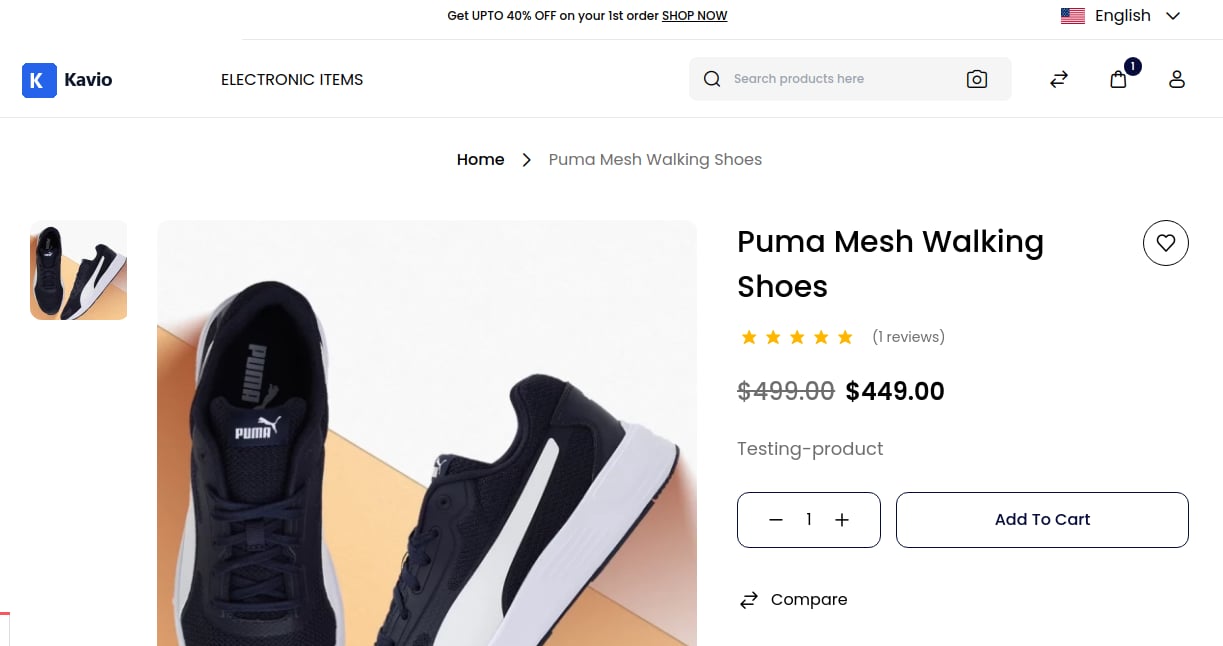

Step 1: Add New Catalog Rule
a) On Admin panel, go to Marketing >> Promotions >> Catalog Rules b) On the upper right side, click on Create Catalog Rule button as shown below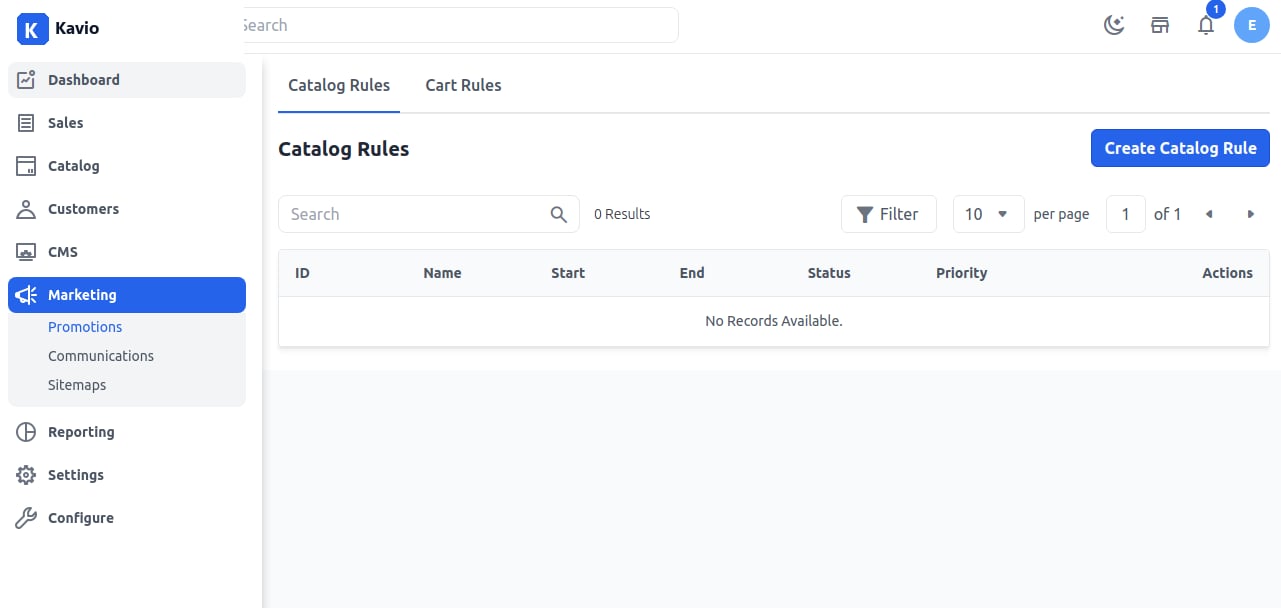
Do the following entry in the Rule Information Section
1. Name:- Enter the name of the new catalog rule. (only for internal reference) 2. Description:- Enter a description of the rule. (only for internal reference) 3. Status:- Set status of catalog rule is active. 4. Channels:- Select the channel on which this catalog rule will be applied. 5. Customer Group:- Select the customer group on which this catalog rule will be applied. 6. From and To dates:- Set the range of dates, when the catalog rule will be affected. If you do not set the dates, the rule applies as soon as the rule is saved. 7. Priority:- Enter the priority of this rule.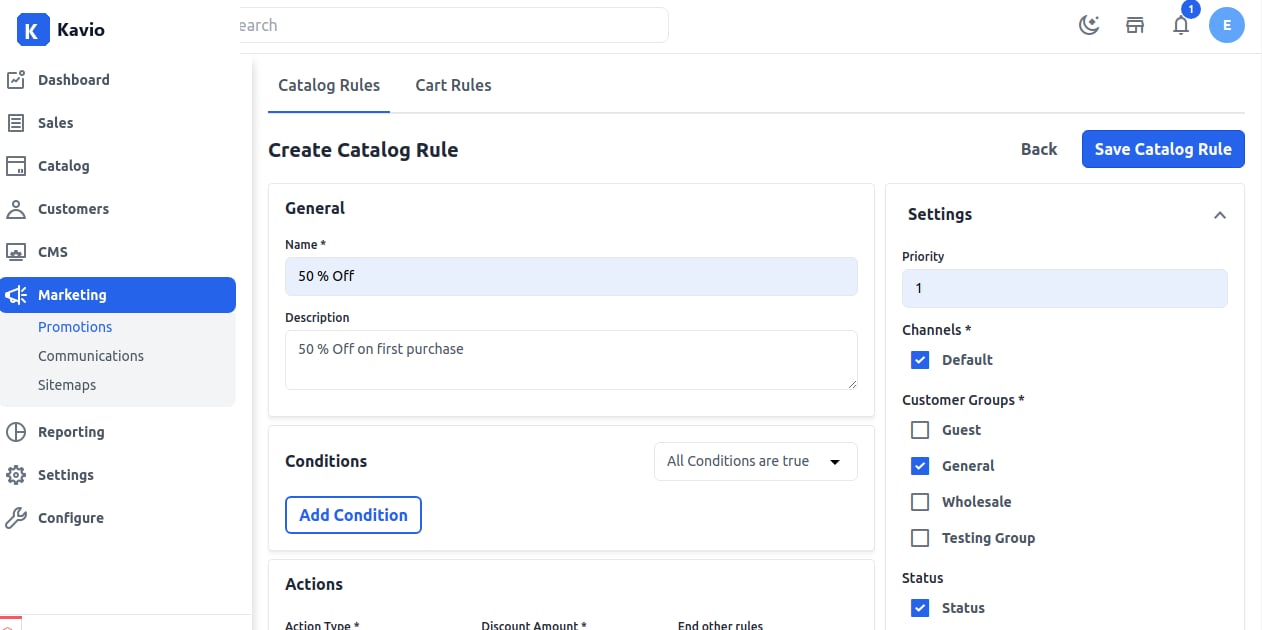
Step 2: Set Conditions
All condition in the catalog rule is based on the product attribute. If you want to apply the rule on all products don’t set any condition. Set the condition type to all conditions that are true or any condition that is true.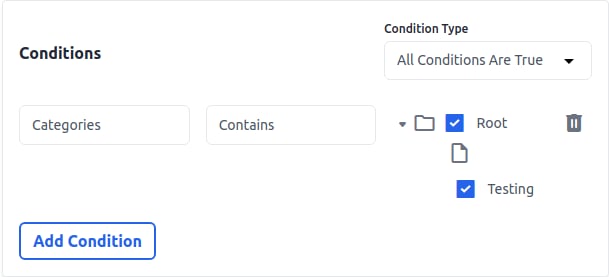
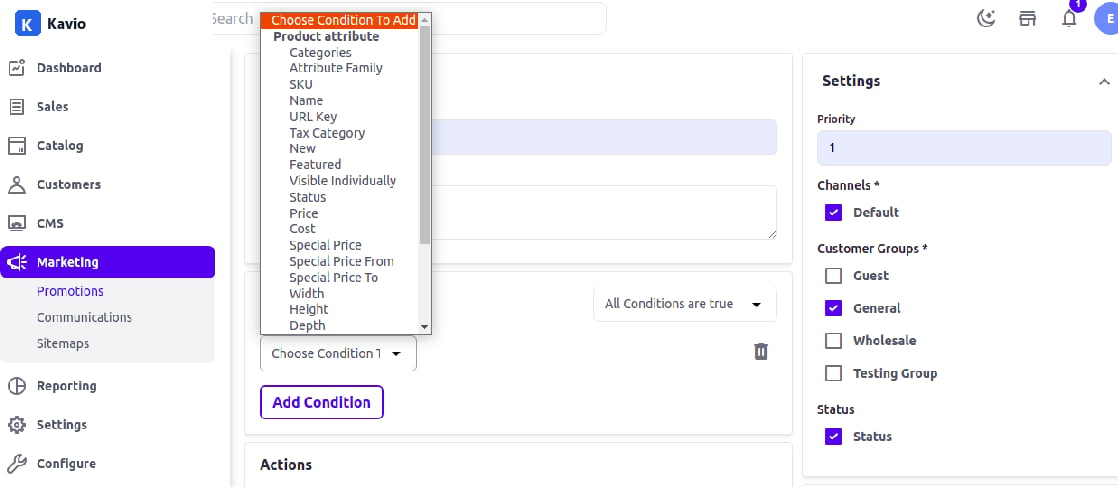
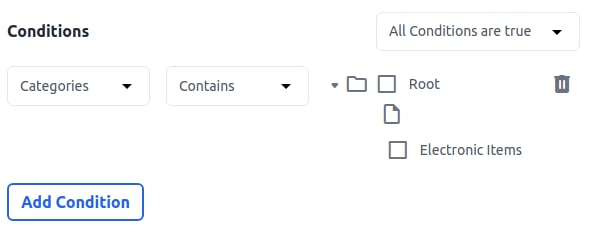
Step 3: Set the Actions
In the Action section, we have to set actions like how we want to apply the rule to the product.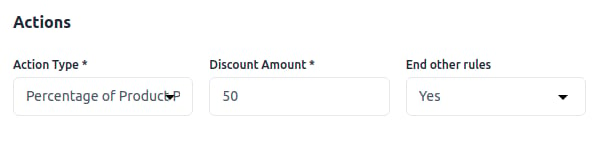
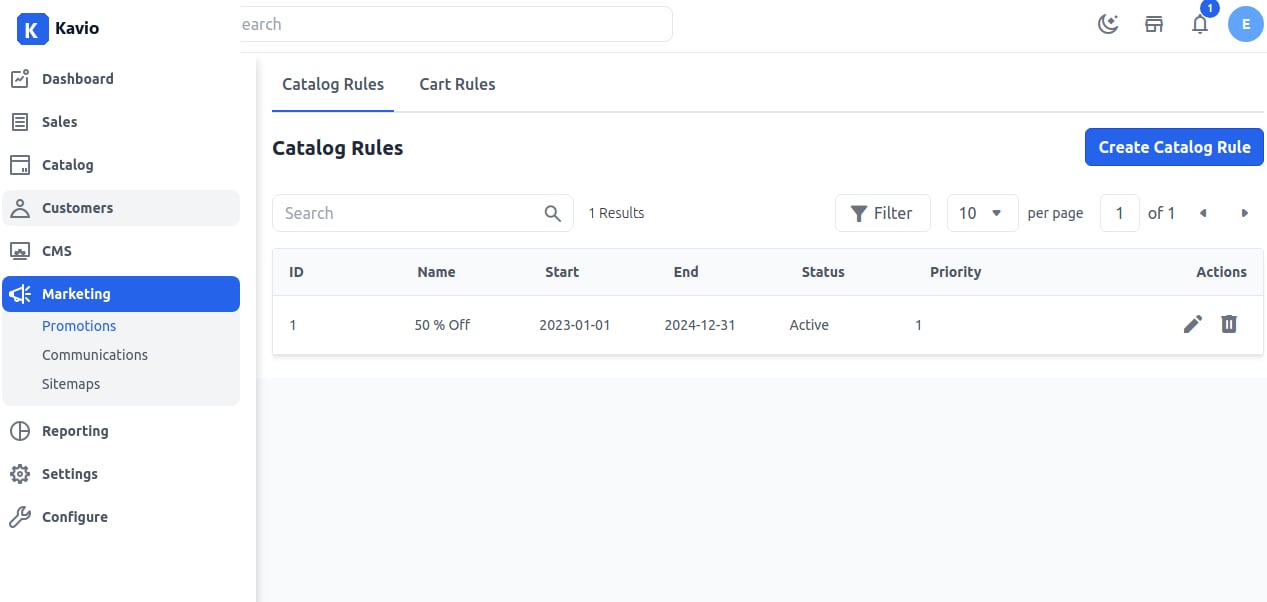
Front End:-
You will get a flat 50% OFF on the product after applying a catalog rule as shown below.