
For example: How many Euros are required to buy 1 Dollar? You require €0.88 to buy $1. This means the exchange rate of the Euro is 0.88 against the Dollar. Here we are going to discuss how to set the exchange rate in Kavio Ecommerce.

Set Exchange Rate in Kavio Ecommerce

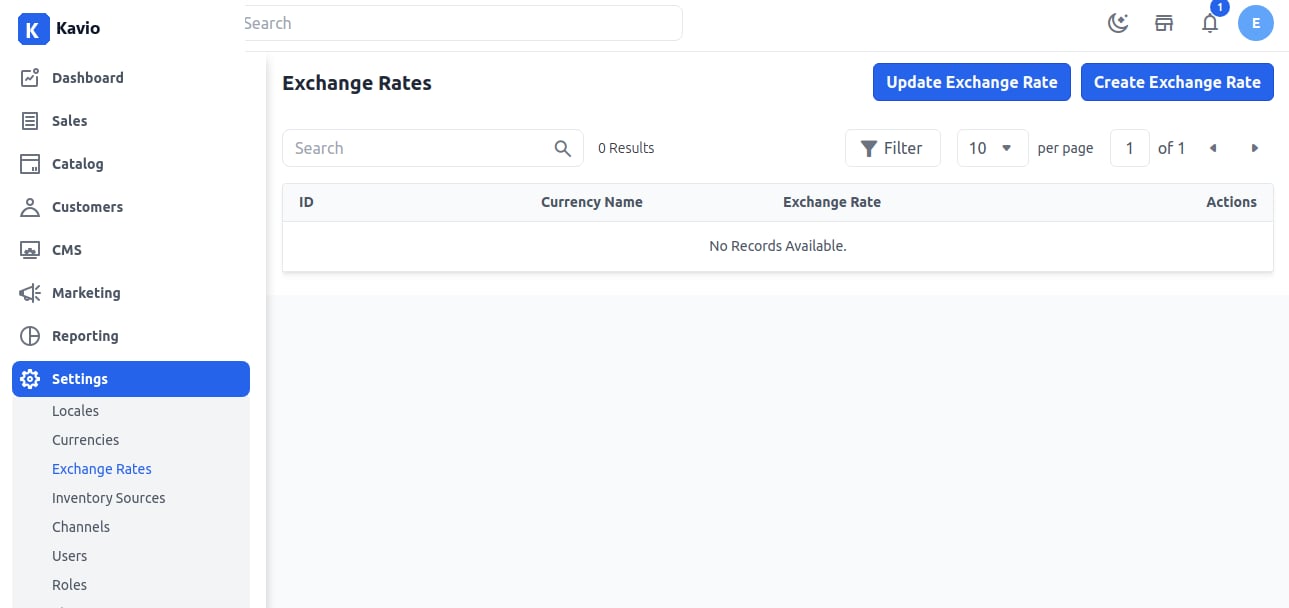
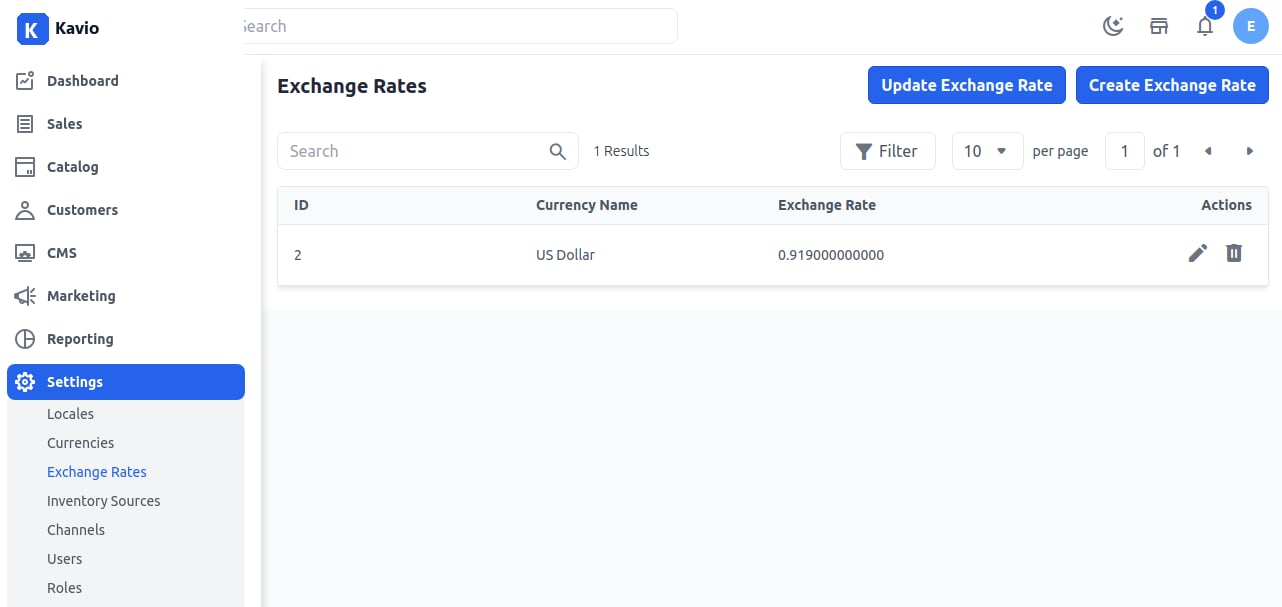
Step 1: On the Admin panel of Kavio Ecommerce, go to Settings >> Exchange Rates >> Create Exchange Rate as shown in the image below. Exchange Rate Step 2: Now enter Source Currency, Target Currency, and Rate, then click on Save Exchange Rate as shown below. Step 3: Now you will be able to see the new Exchange Rate created as shown below. Exchange Rate Grid
Frontend

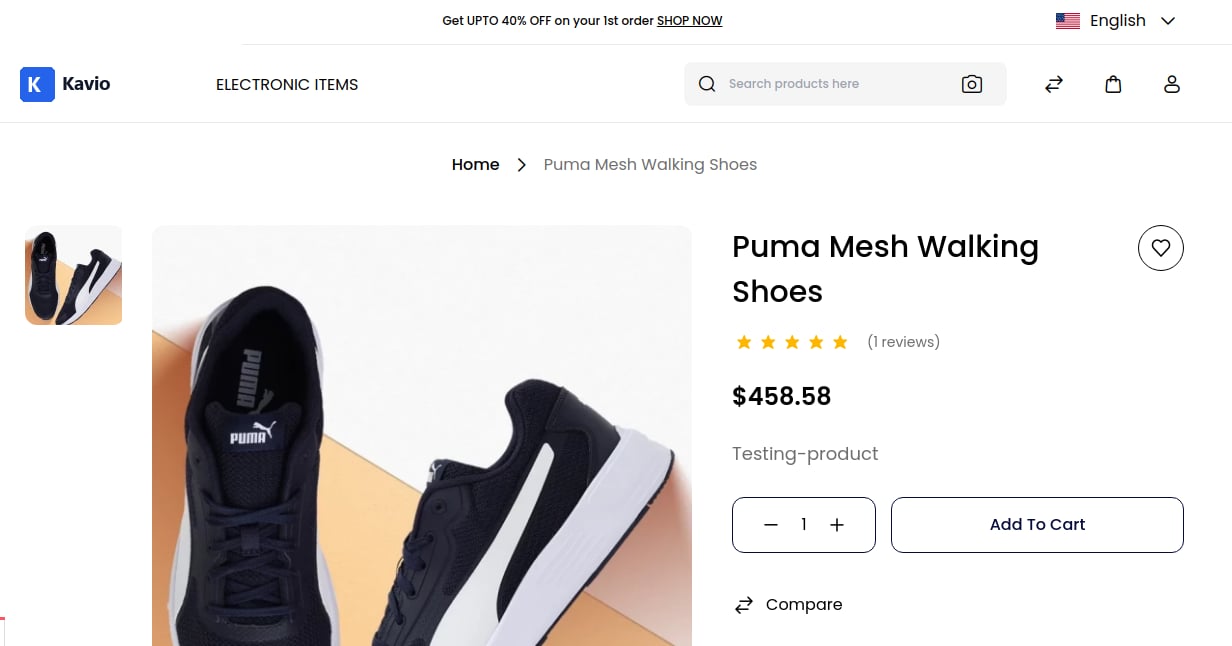
The Exchange Rate of 0.919 is applied successfully on the product price of 499∗∗.Afterapplyingthisexchangerate,thenewpriceis∗∗499**. After applying this exchange rate, the new price is **458.58 as shown below. Exchange Rate Output So, by following these steps, you can easily create an Exchange Rate in Kavio Ecommerce.