
Steps to Create a Customer Group Price in Kavio Ecommerce
Step 1: First, create the customer group and assign the group to the customer, or by default use groups like General, Wholesale, or Guest. Step 2: Login to the admin panel of Kavio Ecommerce and go to Catalog >> Products. Create a new product and go to the product edit page. You will be able to see the Customer Group Price section as shown in the below image.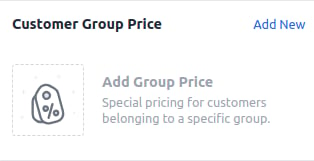
- A) Discounted Price – Set a percentage discount on the product price.
- B) Fixed Price – Set a fixed price on the product after the offer.
- C) Quantity – Minimum quantity required to avail of the offer.
- D) Customer Group – Select the customer group (Prime, Guest, Wholesale, General, etc.).
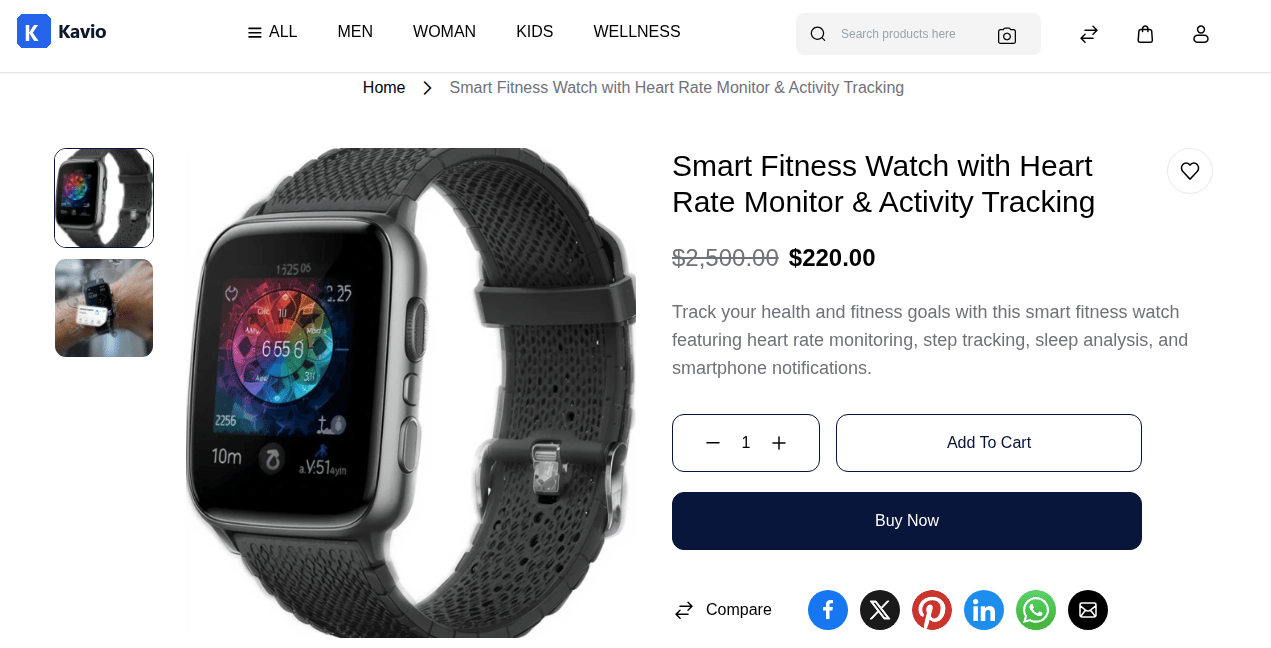
Fixed Price Example Here I have set the fixed price of the product in the Guest Customer group with a minimum quantity of 1. It means if you purchase one piece of this product at 220, then the cost will be $220 for a quantity of one. So now click on the Save button as shown below. Now save the product. You can see the price change according to the group. As set for the Guest group with the fixed price, it is showing the pricing according to the guest group as shown below.
Adding Multiple Customer Group Pricing
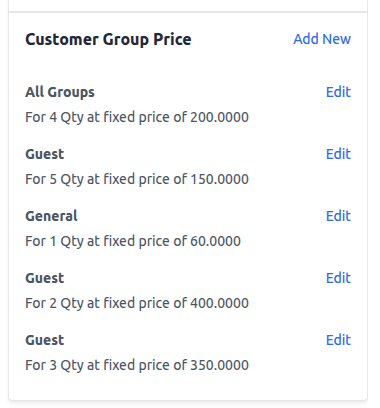
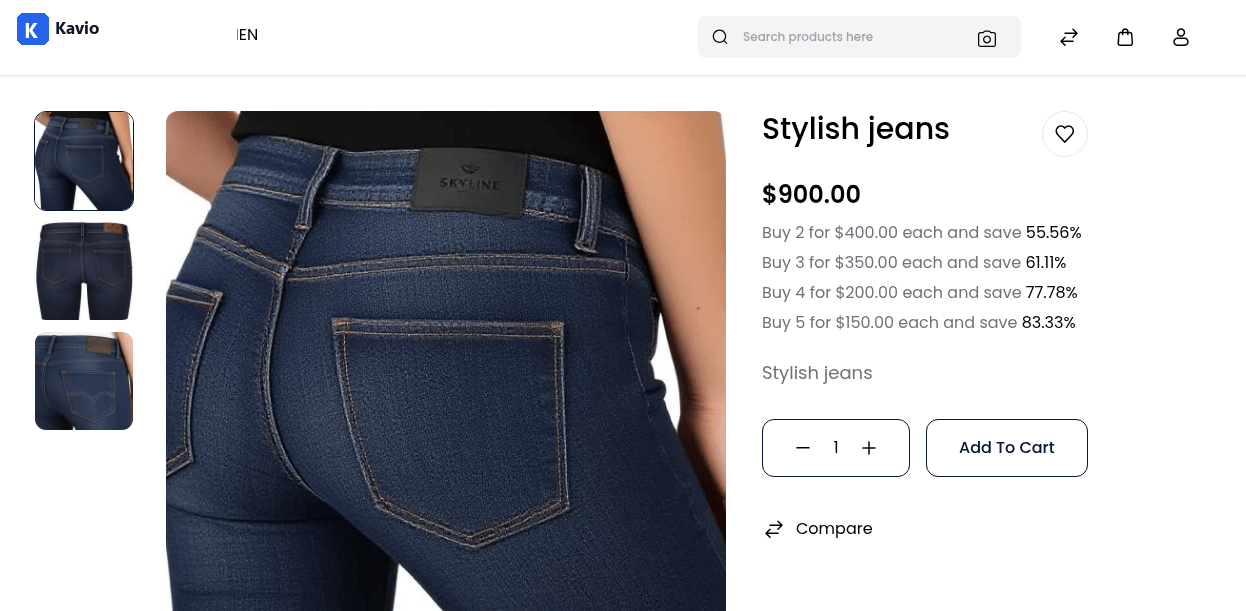
You can also add multiple Customer Group Pricing options for different quantities or groups to encourage bulk purchases and offer better deals. For example, you can configure the following tier pricing structure: Buy 2 for $400.00 each and save 55.56% Buy 3 for $350.00 each and save 61.11% Buy 4 for $200.00 each and save 77.78% Buy 5 for $150.00 each and save 83.33% These pricing tiers can be added directly in the Customer Group Price section of the Admin Panel, as shown below: